

Promotion & Tenure - Candidate
This page is for candidates for promotion and/or tenure. It provides general steps to the process and how to use Interfolio to create and submit your application.
While this gives you a general overview of the promotion and tenure process, if you would like more details, please review the Faculty Handbook.
Step 1: Request P&T case opened
The P&T process begins in May. You will meet with the Provost, Dean, and P&T Chair to discuss details. When you are ready for your case to be set up, you will need to contact learningdesign@bentley.edu.
Step 2: Complete and submit your packet
Select each item to learn more about components of the process.
Log in via case email
You will receive an email beginning your P&T process. This message will include a link to your case.
- Please note: this link is only good for 30 days, but you can always access your case from your Interfolio account under Your Packets.
Log in via Interfolio
Log into Interfolio at: https://account.interfolio.com/sso
- If you forget how to log in, you can always review this instructional doc: How do I log into Interfolio?
Select Your Packets in the menu on the left and then under Active, select the packet that you would like to work on.

There is currently only one candidate form to complete, but it's an important one! It's the only item under the Candidate Application Form header.
You select the Fill Out Form button (or Edit Form if already started). The form will appear, and you will complete it with your information.

Whenever you want to save your work, select the Save Responses button. You will remain on the same page. When you have finished your form for that session, select Return to Packet button.
There are 4 sections that you will need to populate with documents. Within each section, some items are required, but others are optional.
- Candidate Documents
- Scholarship
- Teaching
- Service
Note the following important information about your candidate packet files:
- There is a 5GB file limit for the entire packet.
- If you have questions about what file types you are able to add, you can review Interfolio's Accepted File Types page for the most up-to-date information.
- While Kaltura is not explicitly listed on the above page, links from that platform can be used just like YouTube or Vimeo.
- You might see a section entitled Files to Share with External Evaluators. This section will be used by your department chair when requesting external evaluator letters (this does not apply to Distinguished and Senior Lecturers since external evaluations are not used). Your chair will select files from this section to share with evaluators and, if shared, these files could potentially affect what the evaluators write in their letters. However, any file in this section is not part of your candidate packet and will not be used later by the committees and other Bentley P&T decision makers. If there is something that you want considered, please make sure to add it to one of the other sections.
- Your chair will upload files to the Files to Share with External Evaluators section. We recommend that you (the candidate) not add anything here. If needed, you can email files to your chair, which they can upload if they choose to do so.
To add something, find the section and document name that you would like to add and select the Add button on the left.

A file upload window will appear, and you will select the Add a New File tab.
Select Browse to Upload. Find the document in your computer files that you want to add here. Select the document and then the Open button.
When the file has been uploaded completely, it will say Success and you can select the + Add button.
- Note: you will NOT be able to select the + Add button until it has been fully uploaded.
You will be taken back to your packet and you will repeat those steps for all of the documents in all of the sections that you would like to have in your packet.
In addition to files, you might have videos and/or websites that you would like to add to your packet. You can see details about uploading these materials specifically here: Add Links to Webpages and YouTube Vimeo Videos to Your Packet
Note: since there is a 5GB file limit for the entire packet and video files tend to be large, it is important to share any videos as a link (using the instructions above) rather than as a file.
Edit Document Title
Select Edit next to the desired packet item to edit its name. Reviewers see uploaded document titles as bookmarks in the document reader, so it is important to give these documents clear, meaningful titles.

Rearrange Files
If you uploaded a file to the wrong section or need to reorder materials, you can move materials by dragging and dropping while the section is unlocked.

Preview Packet
It is recommended to select Preview Packet in the upper right-hand corner before submitting sections. The preview shows exactly how your packet materials will appear to the committee in the document reader.

If you would like, you can share your packet with a reviewer before submission. This is not required and would solely be used if you wanted to get someone's feedback about your packet before it is considered by the Bentley P&T decision makers. To do so, you will follow these instructions: Share and Receive Feedback on Dossier Materials
While you can submit each section individually, we recommend that you wait until you have completed them all and then submit them in bulk. Part of why we suggest this is because: once you submit a section, you cannot edit it any longer.
Candidates can submit all sections at once by selecting the checkbox at the top of the screen to include all sections. To submit, select the white Submit Sections button that appears above the packet contents.
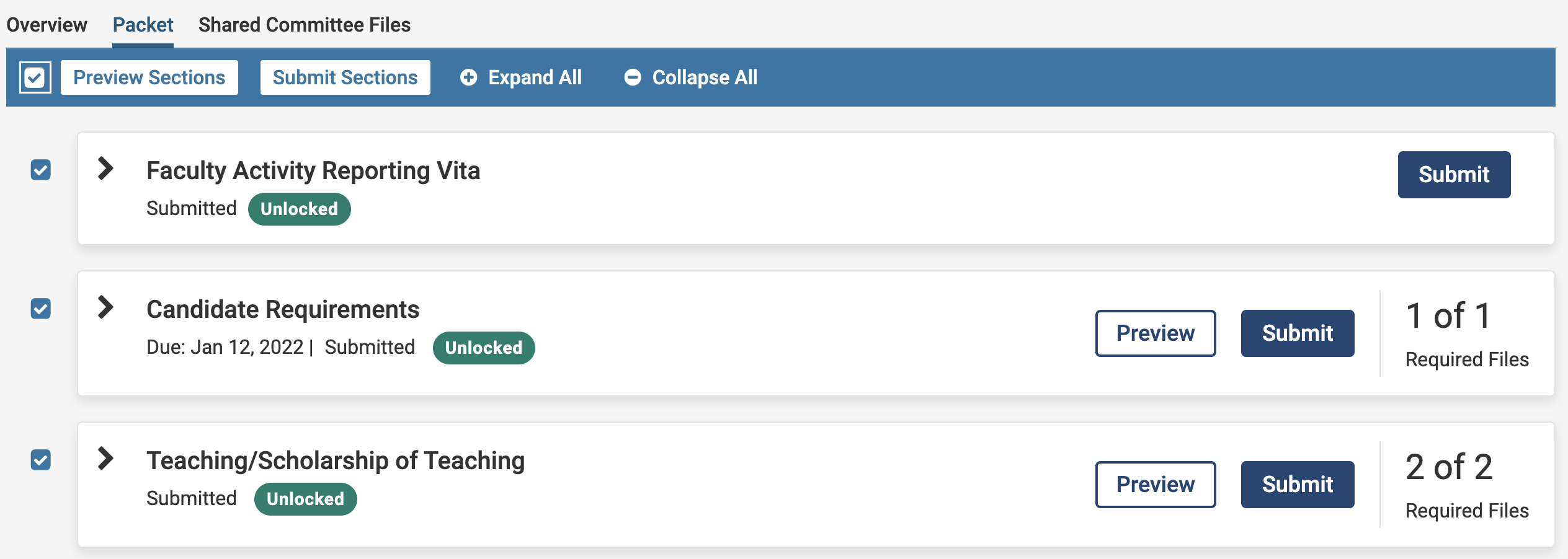
You will ultimately submit 5-6 sections total:
- Candidate Application Form
- Candidate Documents
- Scholarship
- Teaching
- Service
- Files to Share with External Evaluators (if this section applies and it contains files)
Please note a few more important details as you submit your sections and packet:
- You must check/select Submit for any of the sections above if you would like to include them in your packet. If you do not select Submit for a particular section, then it won’t get submitted and won’t be included in your packet.
- The system requires any sections with content to be submitted, so you will need to submit the Files to Share with External Evaluators section even though its contents won't be considered as part of your formal candidate packet. Remember that this section will be used by your department chair when requesting external evaluator letters (this does not apply to Distinguished and Senior Lecturers since external evaluations are not used). Your chair will select files from this section to share with evaluators and, if shared, these files could potentially affect what the evaluators write in their letters. However, any file in this section is not part of your candidate packet and will not be used by the committees and other Bentley P&T decision makers later. If there is something that you want considered, please make sure to add it to one of the other sections.
- The system requires that any section with content must be submitted to move forward. This means that if you have any files in your Files to Share with External Evaluators section, you need to submit it with your application.
- Remember that the Files to Share with External Evaluators section is used by your department chair when requesting external evaluator letters. While you must submit this section with your application, any file in it is not part of your candidate packet and will not be used by the committees and other Bentley P&T decision makers later. If there is something that you want considered, please make sure to add it to one of the other sections.
- Remember that there is a 5GB file limit for the entire packet.
- When you have submitted all of the sections, they will then say Locked and there isn’t anything else to do at this time. Please make sure to add all of your materials and submit your case before the deadline of August 20. If you do not select Submit before the deadline, then the section(s) won’t get submitted and won’t be included in your packet. Your application will likely be incomplete, and no further changes can be made.
- Candidates do not receive a confirmation email after submission. Your packet’s status updates to Submitted in your Interfolio account, and this status serves as confirmation that your materials were successfully submitted for review.
ALL APPLICATION MATERIALS ARE DUE ON AUGUST 20th.
Besides those for Distinguished Lecturers, which are due on October 17th.
Once you submit your packet, your part of the P&T process is complete. You will receive a final decision in a few months. Below are the steps that your tenure and/or promotion packet will go through to make that determination. In these steps, we have included some of the important dates. Please note that Distinguished Lecturers have some differences, including due dates. These are highlighted in their own tab so, if you are a Distinguished Lecturer candidate, please make sure to review it. If you would like more details about the process, please refer to your Faculty Handbook.
Additionally, you might find that the committees will add files that you will want to view and respond to. Here are instructions if that comes up for you: View and Respond to Files Shared by a Committee (Rebuttal)
- Department Committee
- P&T Committee
- Dean and Provost
- Final Decision
- Addendum for Distinguished Lecturers
You will receive an email from your departmental review chair with your department committee letter once they have made their decision. At that time, you will then be given the opportunity to write any objections or additional information that you would like. The department letter and your response will then go to the next step (P&T Committee).
Candidate informed of departmental committee decision: September 23
Application is forwarded to P&T Committee: September 30
Once the P&T Committee makes a decision, you will receive an email from the P&T chair with an update. At the same time, your case will go to the Provost and Dean.
When your application reaches the P&T Committee, you cannot withdraw your application for any promotions.
P&T Committee decision: November 10
Once the dean and/or provost makes a decision, you will receive an email from the P&T chair with an update. At the same time, your case will go to the Board of Trustees for the final decision.
Dean & Provost decision: January 25
In their February Board Meeting, the Board of Trustees will decide on their action. Once the Board of Trustees makes a decision, you will receive an email from the Provost’s Office with your case’s final decision in 1-2 business days.
Department Committee
You can no longer withdraw your application at this time.
Candidate informed of departmental committee decision: November 17
Application is forwarded to P&T Committee: December 1
P&T Committee
P&T Committee decision: March 1
Final Decision
After the P&T Committee, your case will go to the dean and/or provost. This is will be the last step with your final decision.
Final (Dean & Provost) decision: April 1